Build a WhatsApp Sales Agent for Your Small Business (No Code Required)
A WhatsApp AI sales agent can replace the manual work of responding to first-contact inquiries, qualifying leads, and booking follow-up calls — running 24/7 at a cost that's a fraction of a human equivalent. With Chatmaid for the WhatsApp infrastructure and n8n for the automation logic, the entire system can be built and running in under a day. Get started: developers.chatmaid.net/signup
Every small business has the same problem: customers ask questions on WhatsApp at 11pm, on weekends, and during meetings. The businesses that respond first — even with a simple, helpful message — win dramatically more of the business.
But you can't be available 24/7. Your team has a finite number of hours. And hiring a dedicated WhatsApp responder often doesn't pencil out for small businesses.
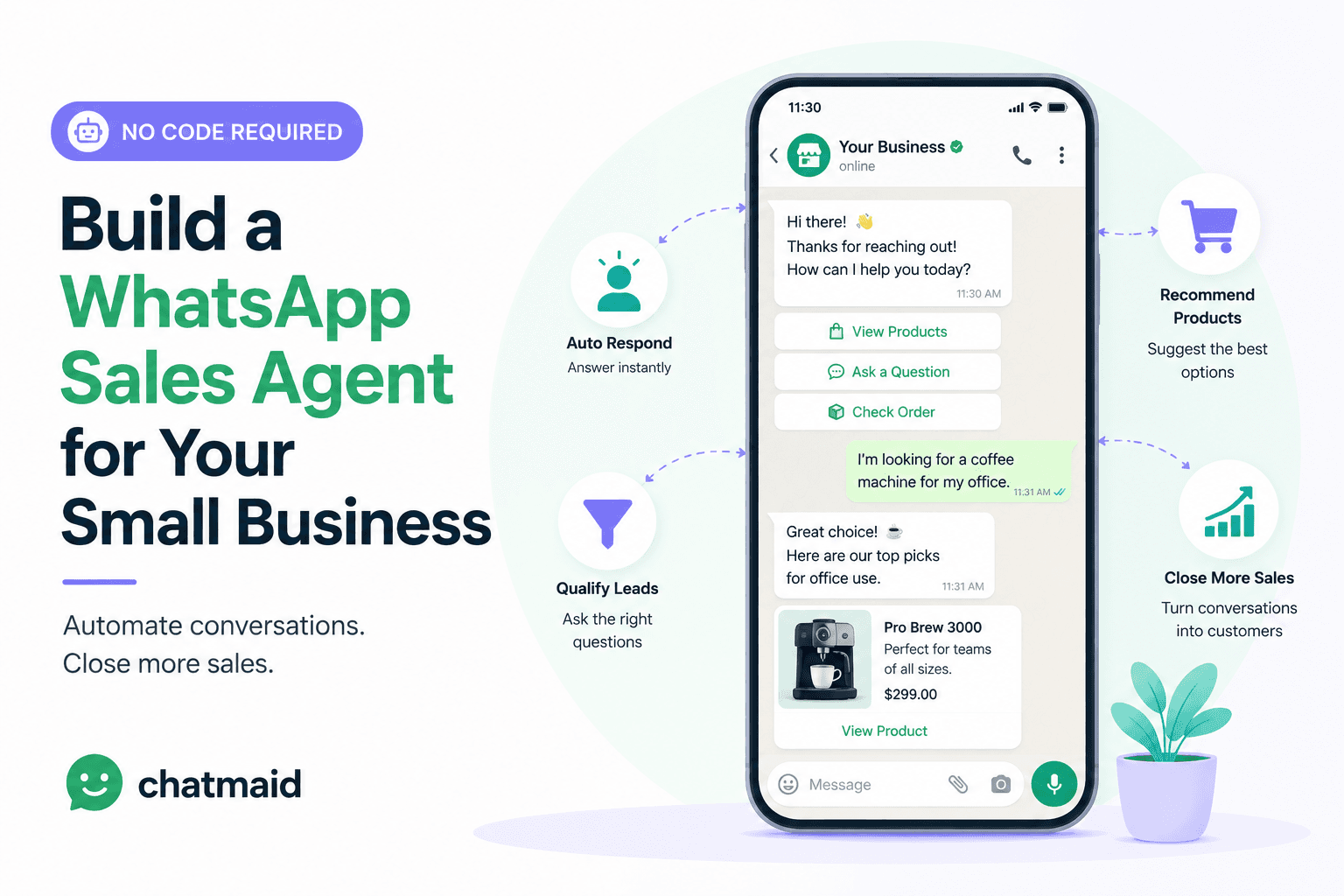
The answer is an AI-powered WhatsApp sales agent that handles the first conversation — qualifying the lead, answering common questions, collecting contact information, and booking a time with a human — without any manual intervention on your end.
This guide shows you how to build one using Chatmaid and n8n, with no coding required.
What the Agent Does
The agent we're building handles the entire top-of-funnel conversation:
- Welcomes new contacts with a branded greeting
- Qualifies the lead by asking a few key questions (budget, timeline, location, use case — adapt to your business)
- Answers common questions from your knowledge base
- Collects contact information (name, email, preferences)
- Books a time for a follow-up call using Calendly or similar
- Escalates to a human when the lead is hot or asks something the agent can't handle
By the time a human gets involved, the lead has already been qualified, educated about your offering, and pre-committed to a specific time slot.
Real Examples by Industry
Real Estate
A prospect messages your agency's WhatsApp at 10pm asking about a property:
"Hi, I saw your listing for the apartment in Miraflores. Is it still available?"
The agent responds immediately:
"Hi! Yes, the Miraflores apartment is still available. It's a 2-bedroom, 85m², asking $185,000. Are you looking to buy for personal use or investment? And what's your approximate timeline?"
The conversation continues — budget range, financing status, availability for a visit. By morning, your agent has a profile on a qualified buyer who's already booked a showing.
Legal Services
A potential client messages asking about a contract dispute. The agent explains the firm's practice areas, asks for basic case details, and schedules a paid consultation — all before 9am.
E-Commerce / Delivery Services
A customer messages asking about an order. The agent pulls the order status from your system (via a webhook to your order management platform), replies with the tracking information, and flags the conversation if there's a problem.
Building the Agent with n8n + Chatmaid
Overview
The architecture is simple:
WhatsApp Message → Chatmaid Webhook → n8n Workflow → AI Model → Chatmaid Send → WhatsApp Reply
And for conversation memory:
n8n → Google Sheets (read history) → AI Model → n8n → Google Sheets (write history)
Step 1: Set up Chatmaid
- Sign up at developers.chatmaid.net/signup
- Connect a WhatsApp number via QR scan
- Set up a webhook pointing to your n8n webhook URL
Step 2: Create the n8n workflow
Node 1: Webhook Trigger Create a Webhook node. The URL it gives you goes into Chatmaid's webhook settings.
Node 2: Filter outbound messages Add an If node: only continue if {{ $json.event }} equals message.received.
Node 3: Extract contact info Use a Set node to extract:
phone:{{ $json.data.from }}message:{{ $json.data.content }}timestamp:{{ $json.data.timestamp }}
Node 4: Check conversation history Use a Google Sheets node to look up the last 10 messages from this phone number. This gives the AI context for the current conversation.
Node 5: Build the AI prompt Use a Function node to assemble the prompt:
javascript
const systemPrompt = `You are Sofia, a friendly and professional sales assistant for [Your Company]. Your job is to welcome new leads, learn what they need, and help them take the next step. Company overview: [Brief description of what you do] Qualification questions to ask (one at a time, naturally): - What brings you here today? - What's your timeline? - What's your budget range? - Have you spoken with anyone else about this? When you have enough information, offer to book a call: "Would you like to schedule a 15-minute call with one of our specialists? Here's our booking link: [calendly link]" If asked something you're not sure about, say: "Great question — let me get our specialist to follow up on that directly." Keep responses conversational and brief — WhatsApp isn't email. 2-4 sentences maximum per reply.`; const history = $input.first().json.history || []; const messages = [ ...history, { role: "user", content: $input.first().json.message } ]; return { systemPrompt, messages };
Node 6: Call the AI HTTP Request node to OpenAI or Anthropic with the prompt and conversation history.
Node 7: Send the reply HTTP Request node to Chatmaid's send endpoint:
json
{ "fromPhoneId": "+15551234567", "to": "{{ $node['Extract'].json.phone }}", "content": "{{ $node['AI'].json.choices[0].message.content }}" }
Node 8: Save conversation history Google Sheets node to append the customer message and AI reply.
Step 3: Test the flow
Send a WhatsApp message to your connected number. You should receive an AI-generated reply within 3-5 seconds.
Conversation Memory: The Key to a Natural Experience
Without memory, every message is treated as if it's the first. The agent would ask the same qualification questions repeatedly — a terrible experience.
The Google Sheets approach stores each message turn indexed by phone number. Before calling the AI, you fetch the last 10 turns and include them in the messages array. This gives the AI the full conversation context.
For higher volume or more advanced use cases, replace Google Sheets with a proper database (Supabase, Airtable, or PostgreSQL) for faster queries.
Escalation: When to Hand Off to a Human
Your agent should be honest about its limitations. Configure escalation triggers:
Escalate when:
- The AI response includes uncertainty markers ("I'm not sure", "I'll need to check")
- The customer asks to speak to a person
- The customer sends the word "HUMAN", "AGENT", or "HELP"
- The lead has been qualified (budget confirmed + timeline short + intent clear)
On escalation, the agent:
- Sends a warm handoff message: "Great! I'm connecting you with one of our specialists now. You can expect a call within 2 business hours."
- Fires a notification to your team (Slack message, email, or WhatsApp to a separate business number)
- Includes the full conversation summary so the human starts informed
What This Costs
Component
Cost
Chatmaid
$7.99/month
n8n Cloud
from $20/month (or free if self-hosted)
OpenAI GPT-4o
~$0.002 per conversation turn
Google Sheets
Free
For 500 conversations/month: approximately $35/month total. That's less than the cost of one hour of a human sales representative.
Customizing the Agent's Persona
The system prompt is where personality lives. Consider:
- Name: Give your agent a name ("Sofia", "Marco", "Alex") — it feels more human
- Tone: Match your brand — professional, friendly, casual, formal
- Language: The AI can detect and respond in the customer's language automatically if you instruct it to
- Boundaries: Explicitly tell the agent what it should and shouldn't discuss
Compliance Note
Your WhatsApp agent should only contact people who have initiated the conversation or explicitly opted in to receive messages from you. Sending unsolicited messages to cold lists is a terms of service violation and increases the risk of your number being reported.
The setup described here — where the agent responds to inbound messages — is entirely within normal WhatsApp usage patterns.